Tuesday, June 19, 2012
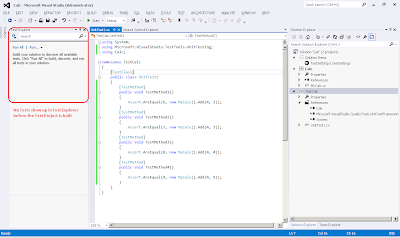
Visual Studio 2012 RC - Test Explorer
Test Explorer allows you to view all the tests in the test
project. It also classifies the tests based on the test results. The time taken
to execute the test can also be seen in the Test Explorer. We can also search
the tests by Test Result, Test File Path and Fully Qualified Name.
To open Test Explorer, click on Test->Windows->Test
Explorer

Once we build the test project, all test appear in "Not Run Tests"
Once we run the testsusing Run, Run All or Run Selected, the execution time for each test can be seen and the tests are classified based on the test results
If we add new tests and build the test project, the new tests appear in "Not Run Tests"
We can search the tests by Test Result, Test File Path and Fully Qualified Name
Monday, May 28, 2012
TFS 11 Beta – Team Explorer
Team Explorer in TFS 2011 allows you to view My Work,
Pending Changes, Work Items, Builds, Reports and Settings
You can view the following using Team Explorer:
- In Progress Work Items, Shelvesets and Code Review Requests
- Pending Changes
- Work Items and Queries
- Builds
- Reports
- Team Project and Team Project Collection settings
Sunday, May 27, 2012
TFS 11 Beta – Web Access
Web Access in TFS 2011 allows you to view Work Items, Source
Control and Builds without launching visual studio.
- You can create and manage work items and view backlog, board and reports.
- You can manage members, iterations and area paths.
- You can also add team favorites.
The web access path looks like http://Server:8080/tfs/TeamProjectCollection/TeamProject

Wednesday, April 18, 2012
Tuesday, April 3, 2012
Visual Studio 2010 - The project type is not supported by this installation
If you see the below error while opening a project in Visual Studio:
...\xyz.csproj : error : The project file '...\xyz.csproj' cannot be opened.
The project type is not supported by this installation.
The fix is to follow the below steps:
...\xyz.csproj : error : The project file '...\xyz.csproj' cannot be opened.
The project type is not supported by this installation.
The fix is to follow the below steps:
- Open the csproj file in notepad or xml editor
- Look for the node <ProjectTypeGuids>{E53F8FEA-EAE0-44A6-8774-FFD645390401};{349c5851-65df-11da-9384-00065b846f21};{fae04ec0-301f-11d3-bf4b-00c04f79efbc}</ProjectTypeGuids>
- Do a bing search for the project type guids to find out the dependencies which need to be installed
- Install the dependencies and you should be able to open the project
Monday, April 2, 2012
Windows Azure Portal - The Windows Live Network is unavailable
If you see the below error while trying to login to Windows Azure Portal:
The Windows Live Network is unavailable from this site for one of the following reasons:
This site may be experiencing a problem
The site may not be a member of the Windows Live Network
You can:
You can sign in or sign up at other sites on the Windows Live Network, or try again later at this site.
The fix is to change the Privacy Settings in the browser from High to Medium High
The Windows Live Network is unavailable from this site for one of the following reasons:
This site may be experiencing a problem
The site may not be a member of the Windows Live Network
You can:
You can sign in or sign up at other sites on the Windows Live Network, or try again later at this site.
The fix is to change the Privacy Settings in the browser from High to Medium High
Subscribe to:
Posts (Atom)